Decrypting a raw SensePrint
Core Biometric Verification through decryption
In the previous section, we saw how to generate a raw SensePrint. In this section we use the output raw SensePrint along with a face image (Base64 encoded) to decrypt the SensePrint data.
To decrypt the raw SensePrint bytes, expand the /verify-raw section and click on Try it out as before:
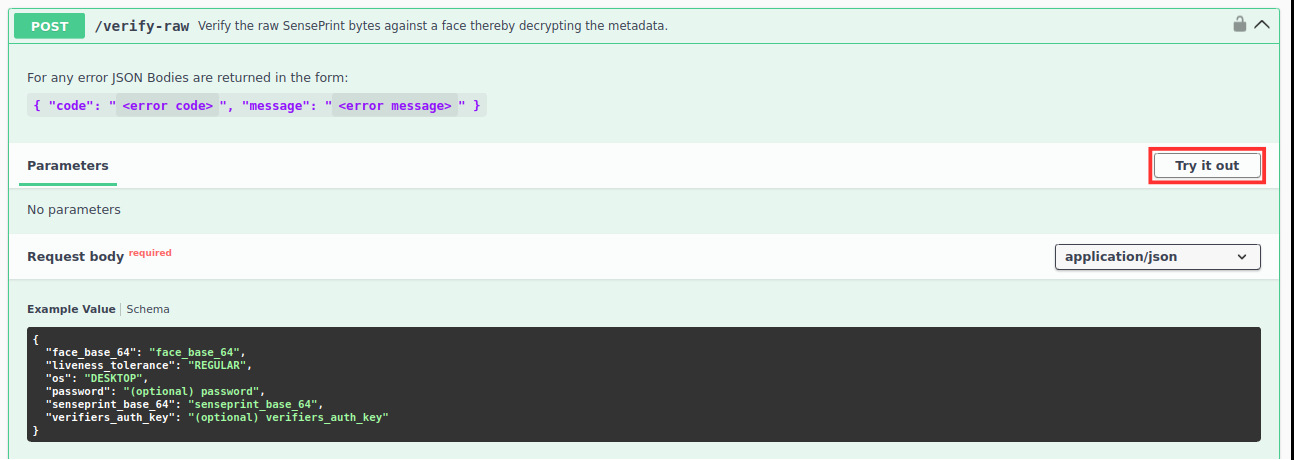
Upon clicking Try it out, the following JSON text will become editable:
senseprint_base_64 is the value obtained by making an API call to the /senseprint-raw in the previous section.
os indicates the operating system the image was captured on. Valid values are ANDROID / IOS / DESKTOP.
password and verifiers_auth_key can be omitted since we didn't specify them while generating the raw SensePrint. Had they been specified during the generation, the same values would have been required here in order to decrypt the SensePrint.
liveness_tolerance is only used if the SensePrint was generated with require_live_face set to true. As before, it specifies how strict the Liveness algorithm should be. The default value of REGULAR should suit most purposes.
We post the minimal JSON shown below to perform decryption / verification of the raw SensePrint (please note, the value below will not work as SensePrints are tied to licences. You should use the values from your own invocation of the /senseprint-raw end-point in the previous step:
Upon clicking Execute, we get the result of the decryption:
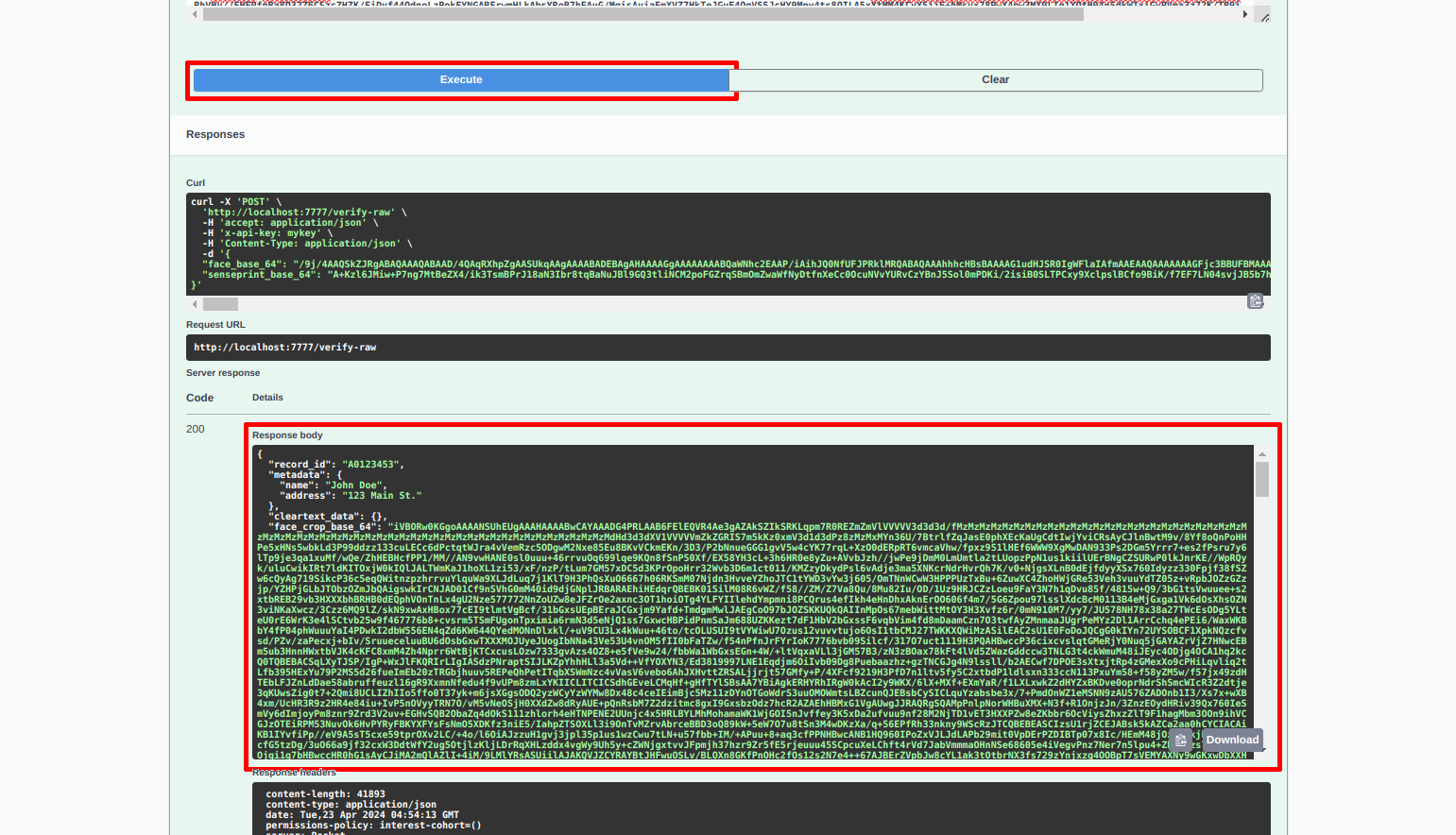
A successful decryption is also a Biometric Verification! This Biometric Verification happens through an act of decryption - not by comparing similarity of bytes / feature vectors / templates.
You will notice there is an additional property called face_crop_base_64 in the result. This property is a thumbnail of the face that the algorithm used to decrypt the SensePrint.
A difficulty parameter is also returned. This can be used to assess how difficult it was for the algorithm to perform a decryption. A sample use case is when you want to determine if the face presented is quite different from the face during SensePrint issuance. Three levels of difficulty can be returned EASY, MEDIUM, and HARD. If the difficulty returned is HARD/ MEDIUM, depending on your use case, it might be advisable to regenerate a new SensePrint with a more recently captured image.
Unlike a similarity/confidence score, difficulty can only be determined if a decryption is successful. Thus, it is truly Privacy Preserving and is completely unlike a similarity score.
This API call is also used by the online version of the Mobile SDKs.
The face crop value returned by the call is what is displayed in the SDK demo app UI.